
DirectAdmin allows you to block emails containing the Stop word.
1. Log in to your DirectAdmin Account.
2. In the E-mail Manager section, click on SPAM Filters or type SPAM Filters in the navigation filter box, and the option will appear. Click on it.
3. Under Block By, select the Stop Word option from the drop-down menu.
4. In Value, type the stop word you want to block.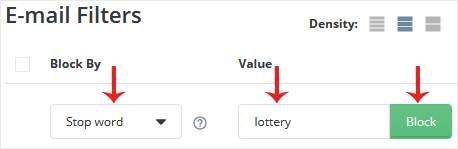
5. Click on Block.
You can add the Stop word as many times as you want. However, if you want to avoid blocking partial matches with other words, use space before and after your Stop word.
İlgili diğer dökümanlar
How to Enable Apache SpamAssassin in DirectAdmin
1. Log in to your DirectAdmin Account.2. In the E-mail Manager section, click...
How to Disable Apache SpamAssassin in DirectAdmin
1. Log in to your DirectAdmin Account.2. In the E-mail Manager section, click...
How to Block Email Using Spam Filters in DirectAdmin
You can use spam filters to block emails from specific email addresses. 1....
How to Remove Email Spam Filters in DirectAdmin
You can remove email filters from your DirectAdmin account. 1. Log in to...
How to Block a Spammy Domains Using Spam Filters in DirectAdmin
If you are getting spam emails from the same domain but with random email...